

Snorfle manual
Snorfle turns the things you want to read into EPUB books. You drop web pages, RSS feeds and Markdown into folders, and each folder becomes one EPUB for your e-reader.
Folders
The Folders screen is Snorfle’s home. Each folder is a coloured tile with an icon and a count of the items inside.
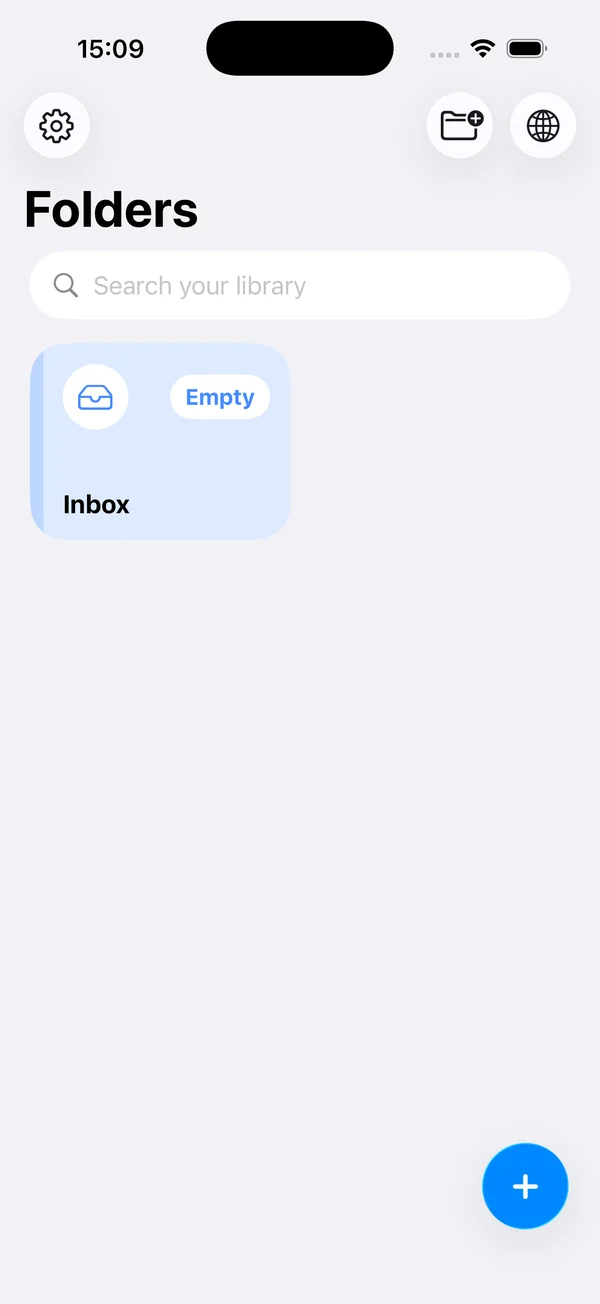 iOS: The folders screen
Everyone starts with an Inbox folder. If want to use Snorfle to save web pages and send them to your e-reader this might be all you need. If you want to create collections of related articles, then create some folders.
To make a folder, tap the new folder button at the top of the screen. Give it a name, then choose a colour and an icon. You can change both later with Edit Folder.
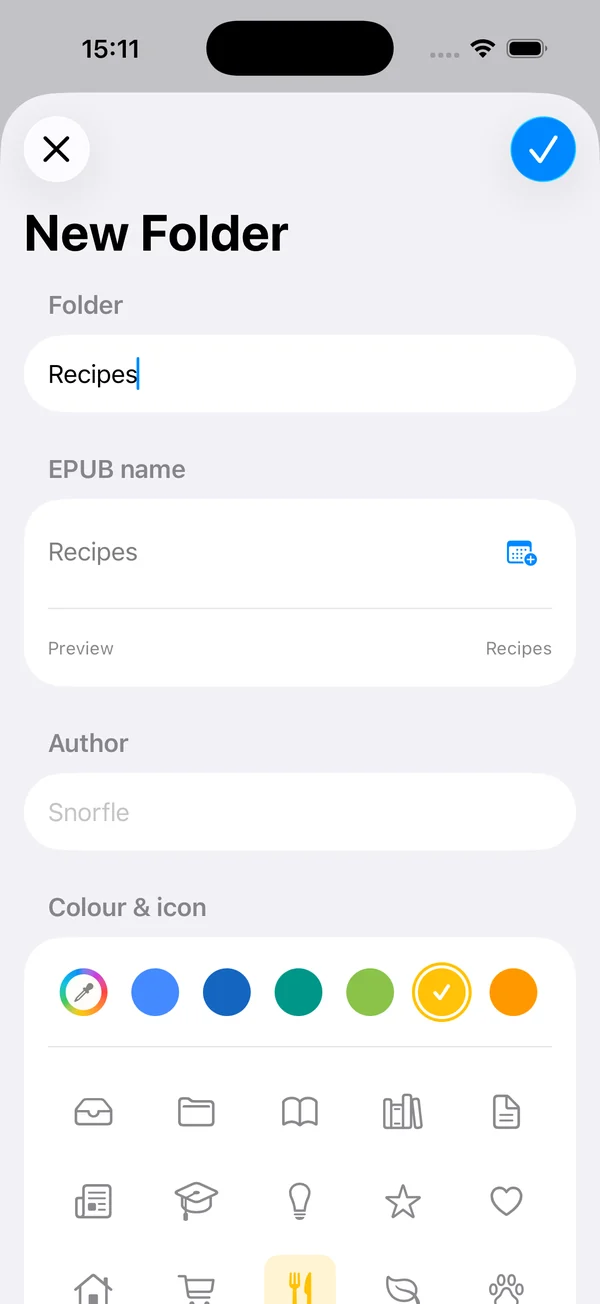 iOS: Creating a new folder
Every new item lands in your Inbox unless you choose another folder.
Adding things to read
You can add three different types of item:
- Web pages: paste a link, or open a page in Snorfle’s built-in browser and tap Add.
- RSS feeds: add a feed and Snorfle brings in its posts.
- Markdown: type or paste Markdown straight into the app.
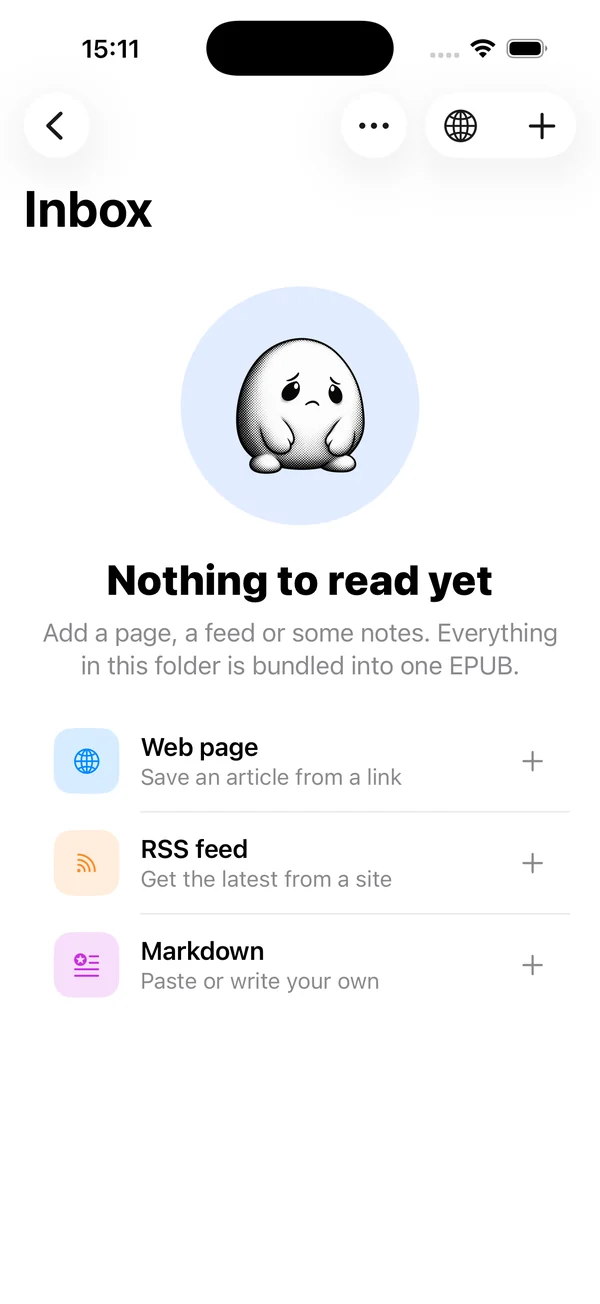 iOS: An empty folder
Each item shows where it came from and when it was fetched, for example “Web page, openpoet.org, Fetched 19 Oct 2026”.
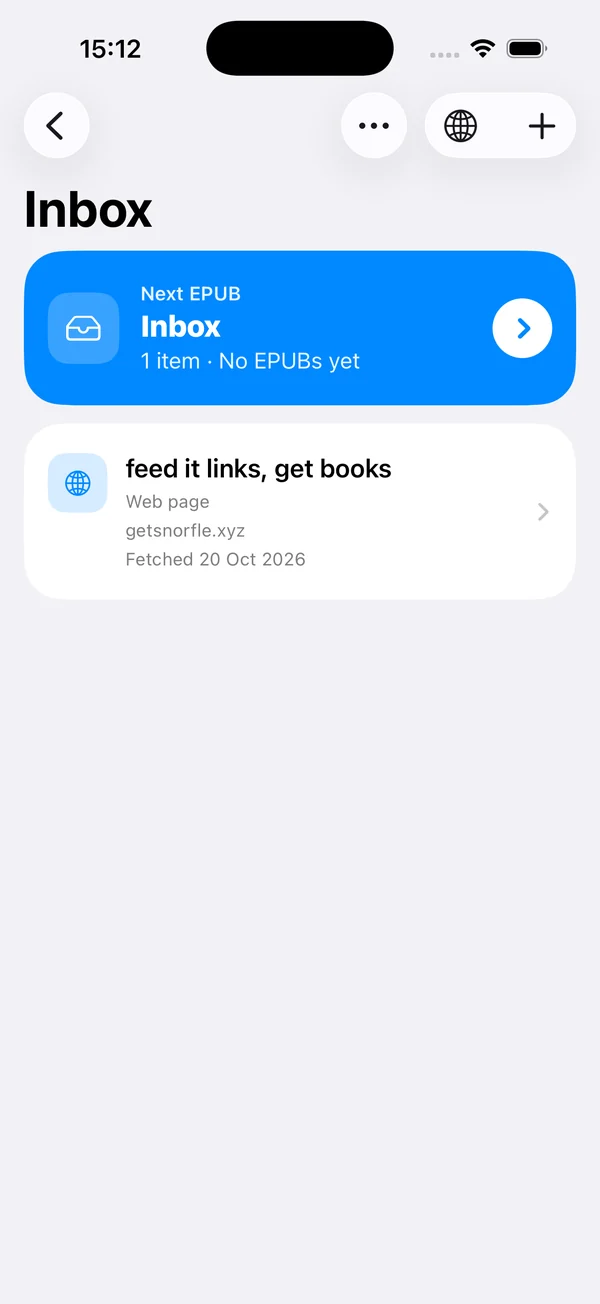 iOS: A saved web page
If you know the URL of a web page or RSS feed, you can add it to Snorfle by pasting the URL into the Add screen.
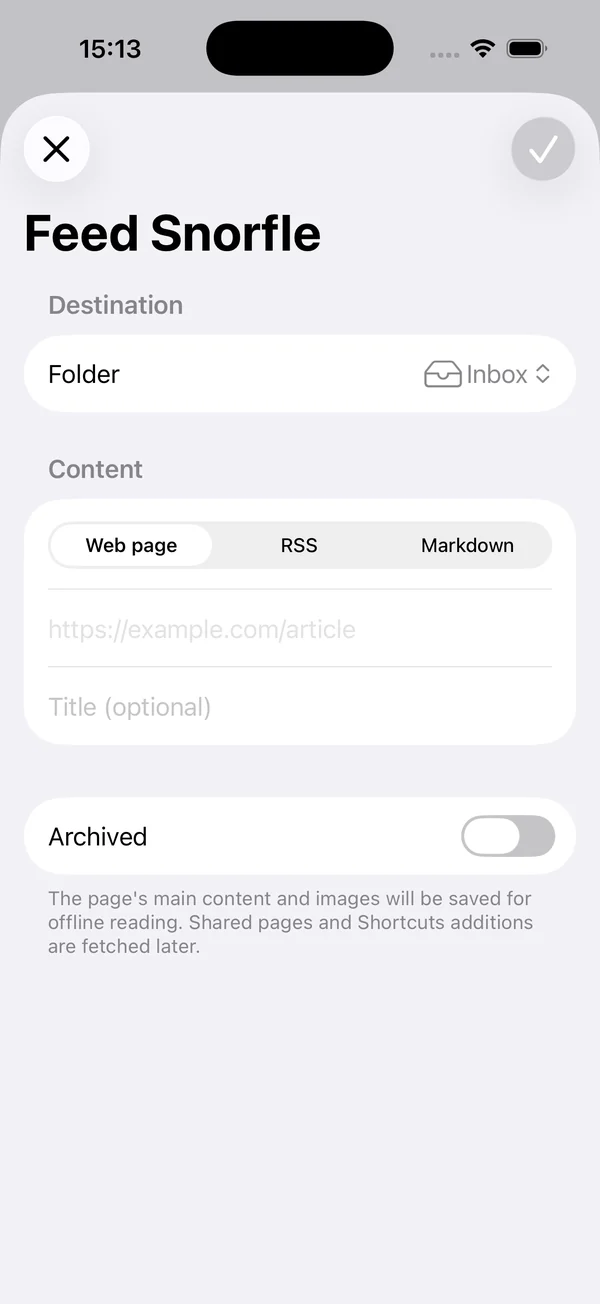 iOS: Adding a web page
If you see something while browsing using Safari, or another web browser, use your browser’s share button and select Snorfle.
Alternatively, you can use Snorfle’s built-in browser to find something to read, then tap Add. You can also long-press a link and select Add to Folder….
Finally, if you like to automate things then make Snorfle part of a Shortcut. Why not make a joke generator to cheer you up when reading the news?
Looking after items
Tap an item to see its details. From there you can:
- Refetch Page to fetch the page again if it has changed.
- View Saved Content to check what Snorfle saved.
- Archive Item, Edit Item or Delete Item.
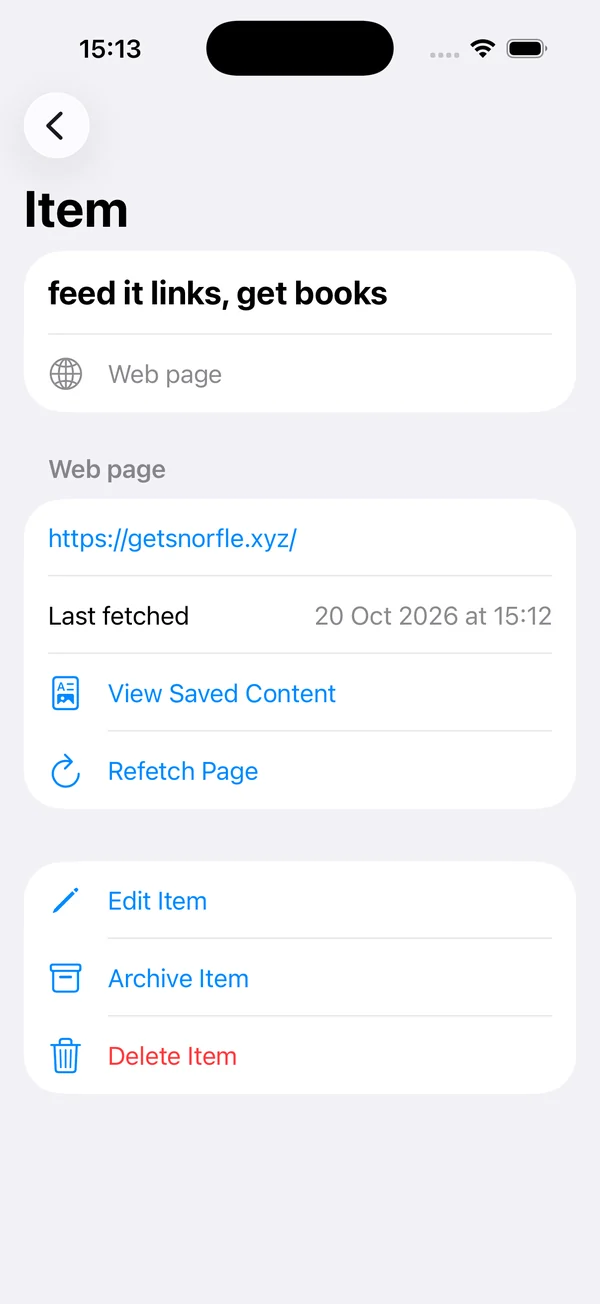 iOS: Item details
The order the items appear in Snorfle, is the order they’ll appear in the EPUB. If you want to change the order:
- Long-press an item and drag it to a new position.
- Tap the menu button and choose Select Items…. You can then select multiple items and reverse their order, or use the drag handles to reorder.
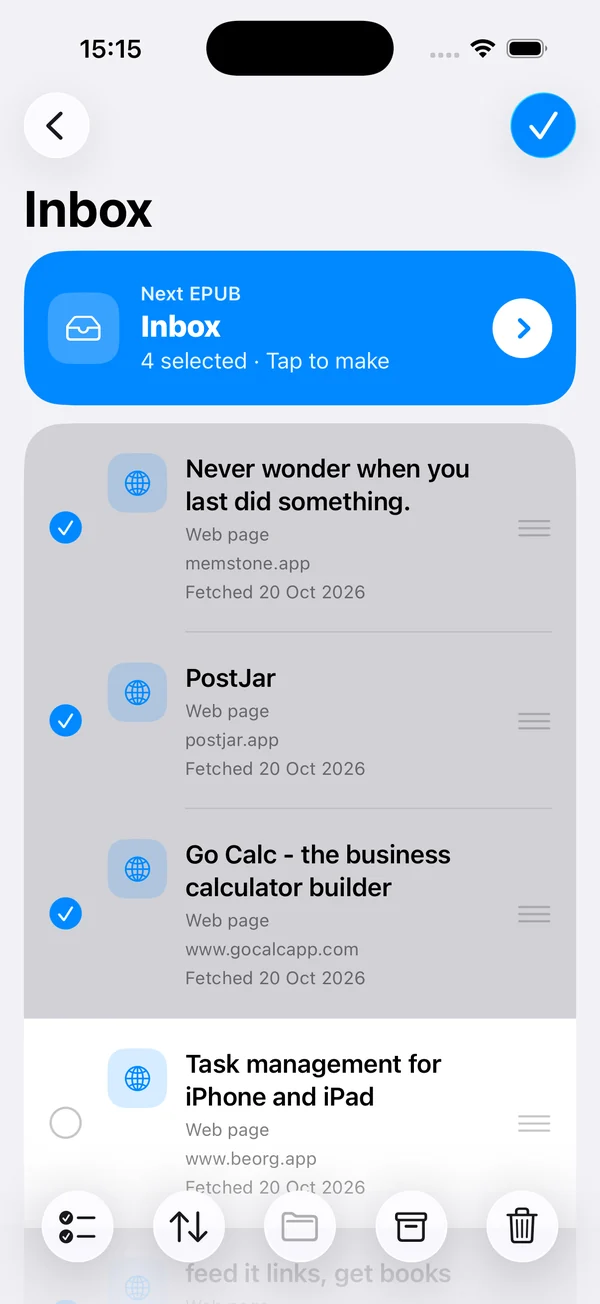 iOS: Selecting multiple items
Making an EPUB
Open a folder and look for the Next EPUB banner. It shows the book’s name and how many items will go into it. Tap it to see EPUBs you’ve already made, or to make a new one.
Snorfle builds the EPUB on your device, so nothing is uploaded to a server.
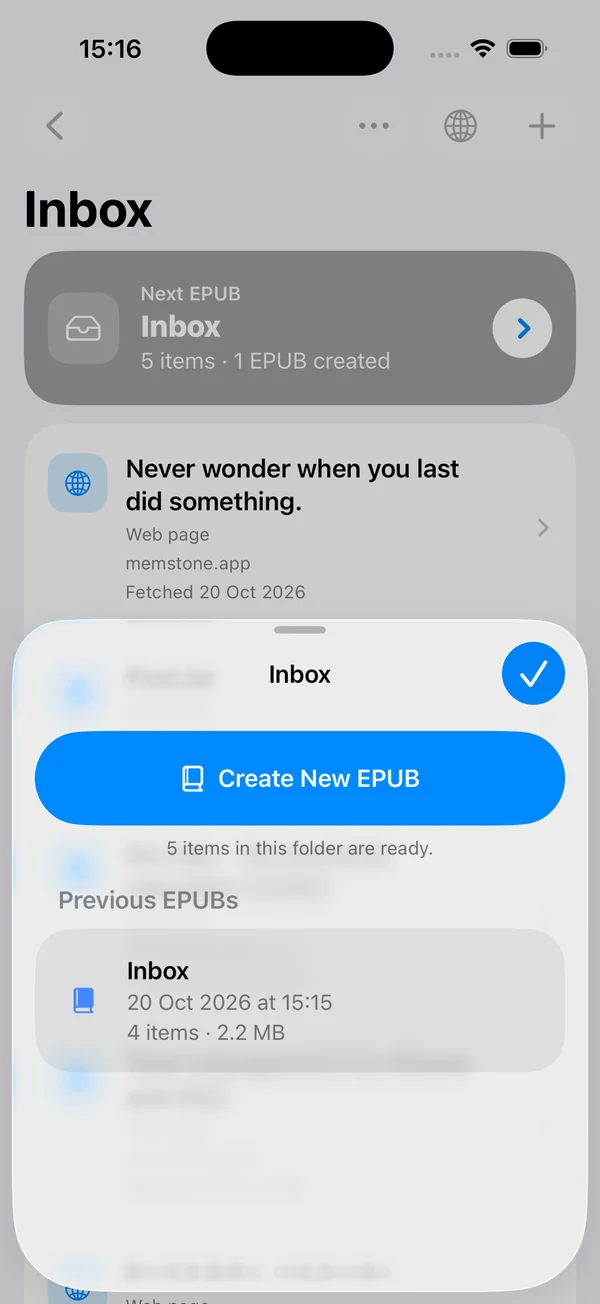 iOS: EPUBs
Naming your EPUBs
In Edit Folder you can set an EPUB name. Add the day/month/year and Snorfle fills them in for you, so a folder called “General Articles” becomes “General Articles 5 October”. A preview shows the name you’ll get.
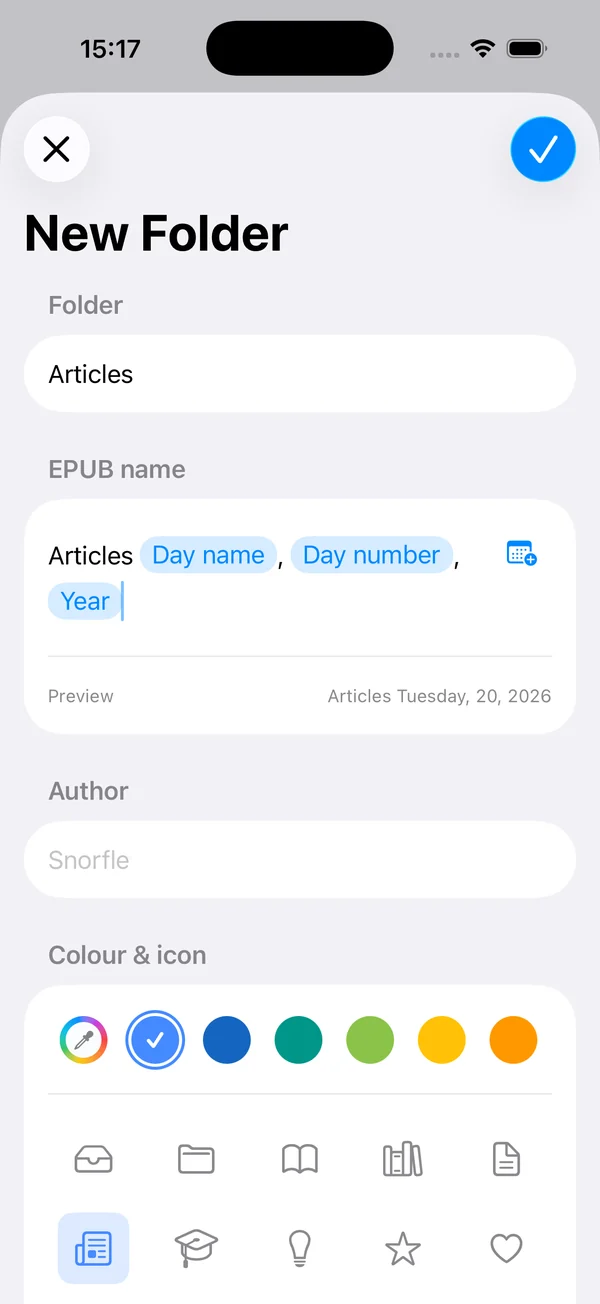 iOS: Naming an EPUB
Sending your EPUB to your e-reader
Once Snorfle has built your EPUB, you can send it to your e-reader. New EPUBs will prompt you to share the file. You can then:
- Choose Send to Kindle (you’ll need the Kindle app installed on your device)
- Save it to Dropbox or Google Drive if you have a BOOX device
- Send it to Apple Books if you want to read it there
- Or maybe something else, Snorfle isn’t picky!
If you have an e-reader that uses CrossPoint firmware, such as XTEINK, you can send the EPUB directly from Snorfle. Start by visiting the Settings page and enabling CrossPoint from the devices section.
If you’ve just made an EPUB and shared it, Snorfle will kindly offer to archive the items. That way you can add more content and not duplicate it in your next EPUB. You can view your archived items at any time by selecting Show Archived from the menu button.
Settings
If you need to housetrain Snorfle visit the Settings.
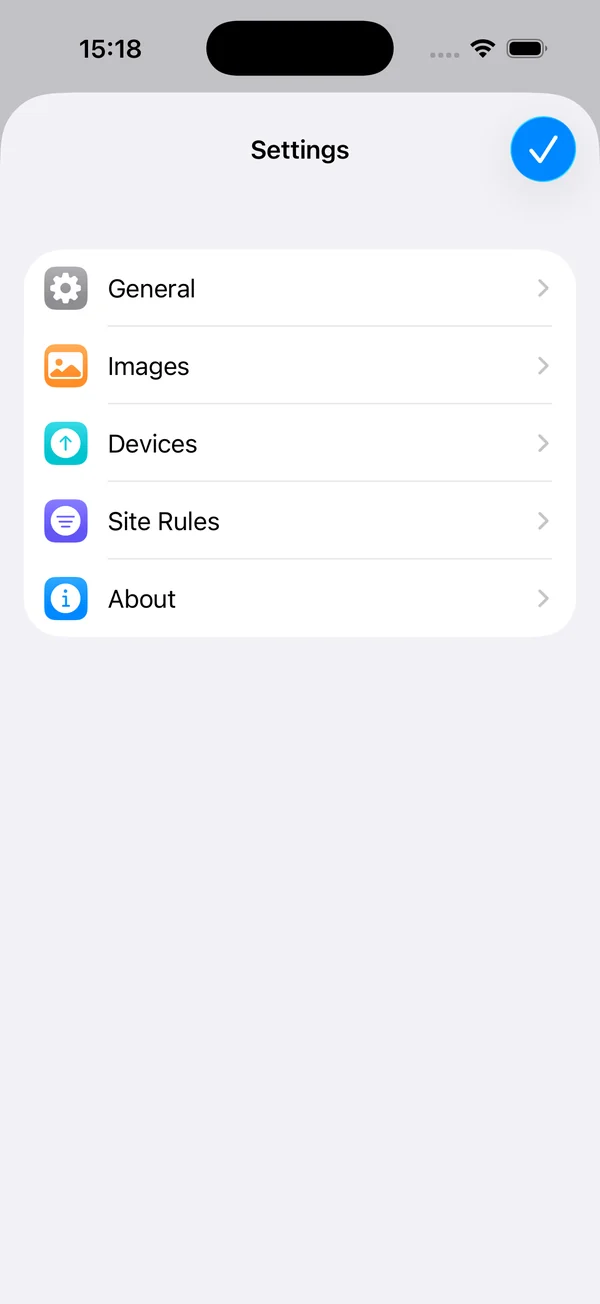 iOS: Settings
General
- Snorfle will only keep a certain number of EPUBs per folder to stop your device getting full. Change this limit in the Settings.
- If you use the share sheet and just want everything to go to the inbox turn on Add shared items immediately.
- Snorfle uses a parser to extract the main content from web pages. By default it uses Readability.js. However, it can also use Defuddle, Postlight Parser and it’s own experimental parser.
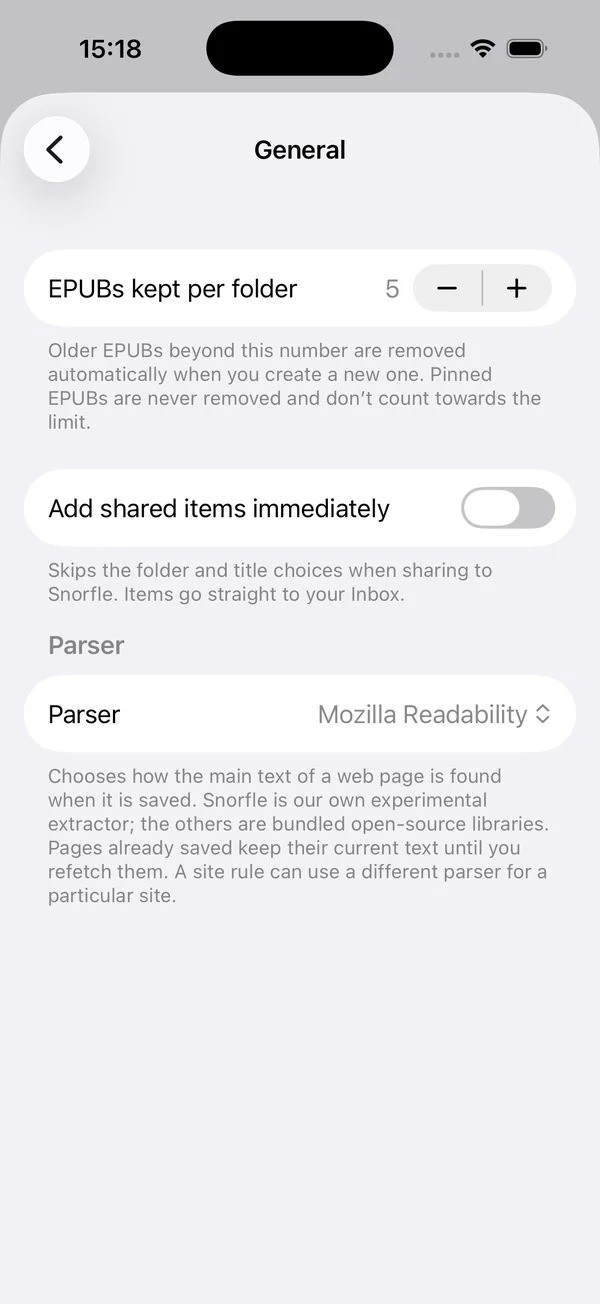 iOS: Settings, General
Images
- If you read your EPUBs on a device that doesn’t support colour you can turn on Grayscale images to help keep the size of your EPUBs down a little.
- If you use an e-ink device you probably don’t want animated images, so choose Convert to still image.
- To help keep EPUBs as small as possible, you can choose an image size that best matches your e-reader.
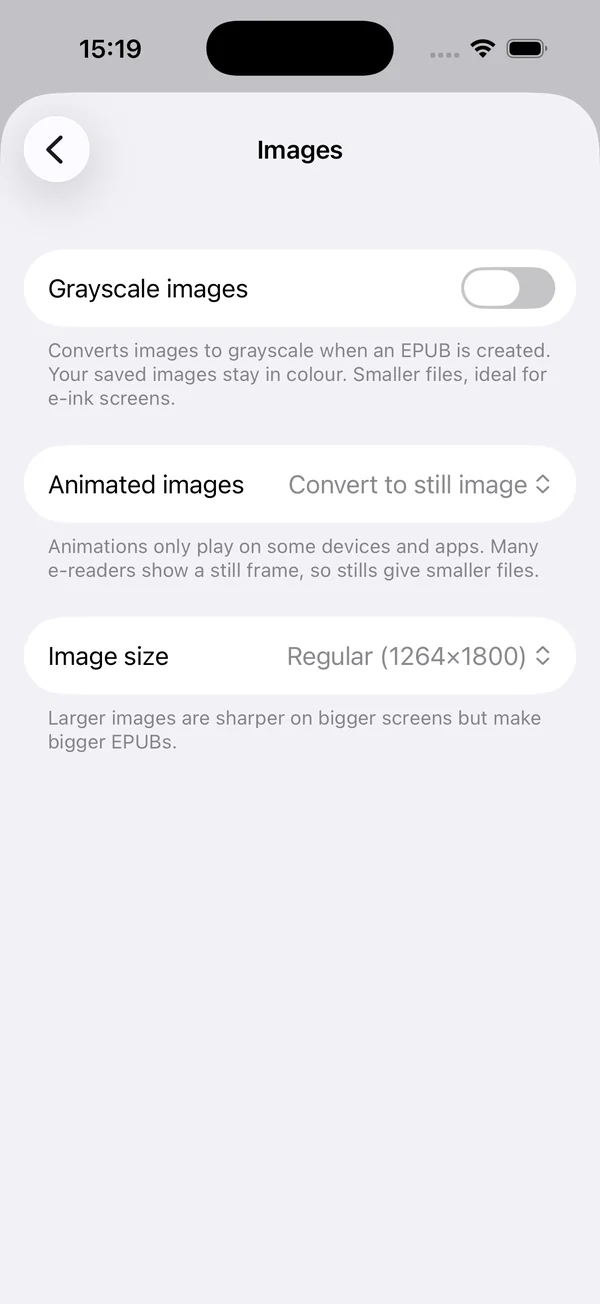 iOS: Settings, Images
Devices
If you have one of those small e-readers that has the CrossPoint firmware installed, enable CrossPoint upload for easy sending!
If the upload folder specified doesn’t exist, Snorfle will create it for you.
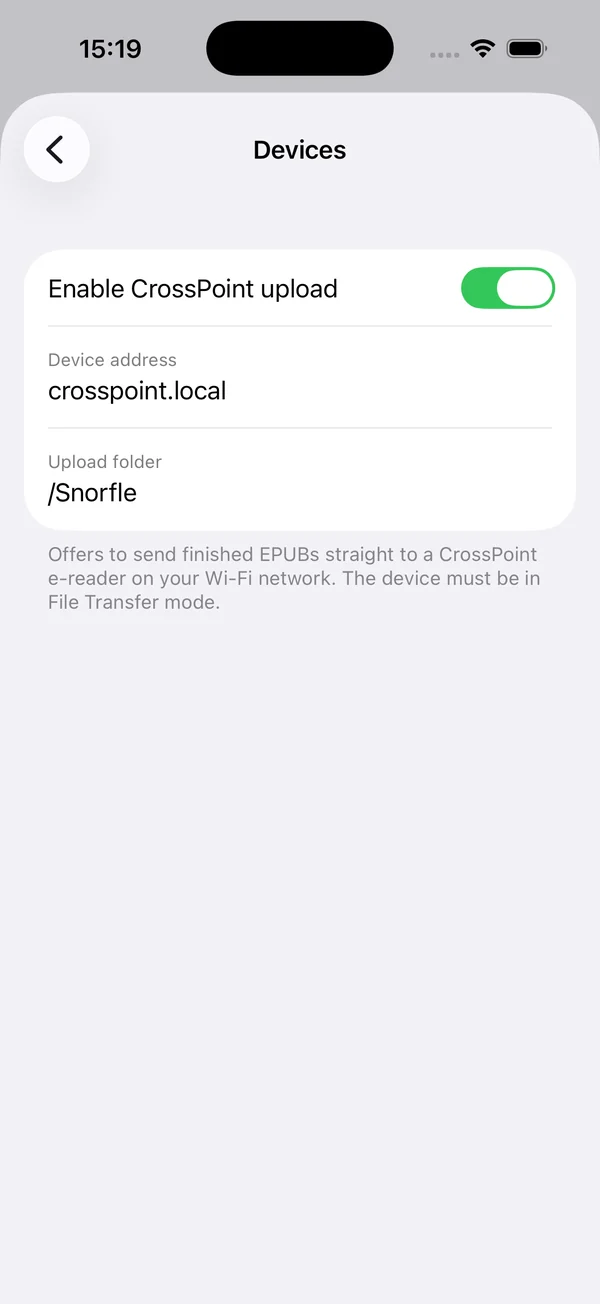 iOS: Settings, Devices
Site rules
If you’re picky about how the content appears in your EPUBs then check out rules. A rule can:
- Stop Snorfle adding a title to each article
- Remove all the links (useful if like me you keep accidentally tapping links on an e-reader with a really slow browser)
- Remove images
- Set a specific parser if there is one site you like which needs something a little different
- Remove elements – matched either by tag (e.g.
a) and/or by text content
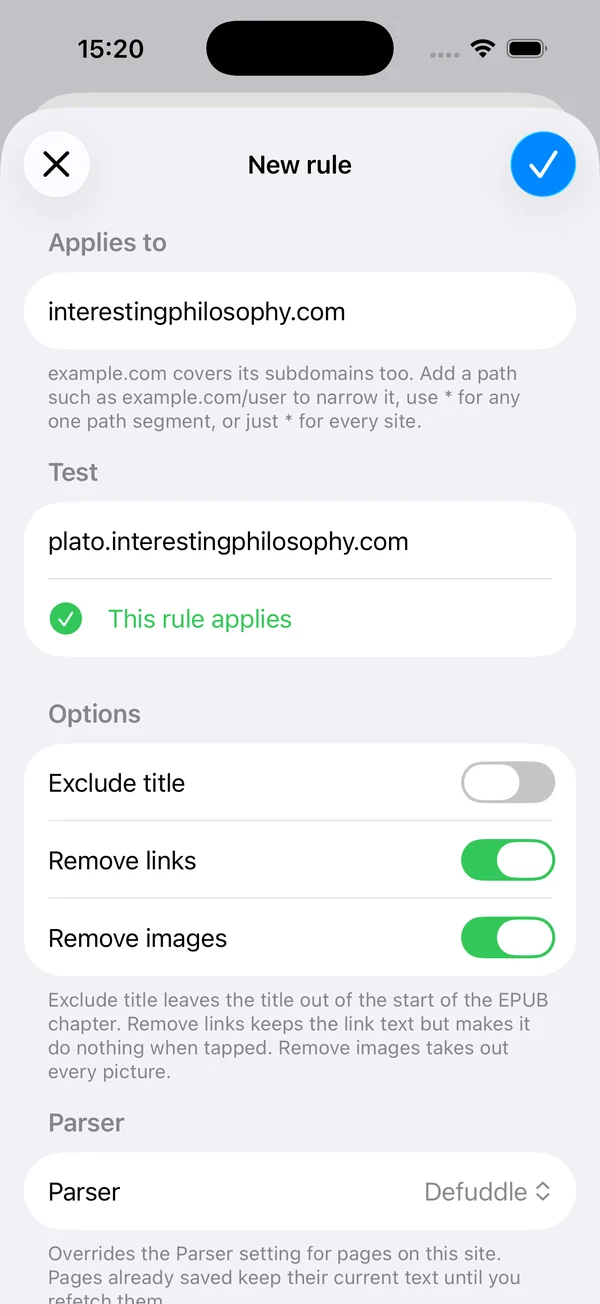 iOS: Settings, Site rules
Need a hand?
If something isn’t working, get support and we’ll help.